So, what's the difference between POP and IMAP? POP3 downloads the email from a server to a single computer, then deletes the email from the server. On the other hand, IMAP stores the message on a server and synchronizes the message across multiple devices.
IMAP email access coordinates between the server and your mail application. Messages that have been read/deleted/replied to will show up as such, both on the server and in the mail application.
POP3 does not coordinate with the server. Messages marked as read/deleted/replied to in the mail application will not show up as such on the server. This means that future mail downloads with POP3 will show all messages as unread.
Outgoing mail is sent using SMTP.
Secure SSL/TLS Settings (Recommended)
Username: Your email
Password: Use the email account’s password.
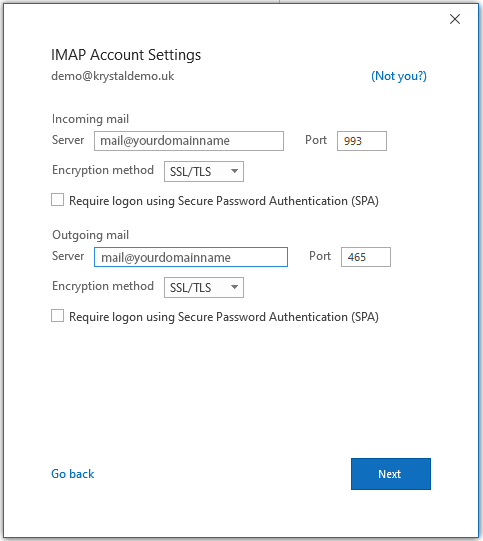
Incoming Server: mail.yourdomainname
IMAP Port: 993 POP3 Port: 995
Outgoing Server: mail.yourdomainname
SMTP Port: 465
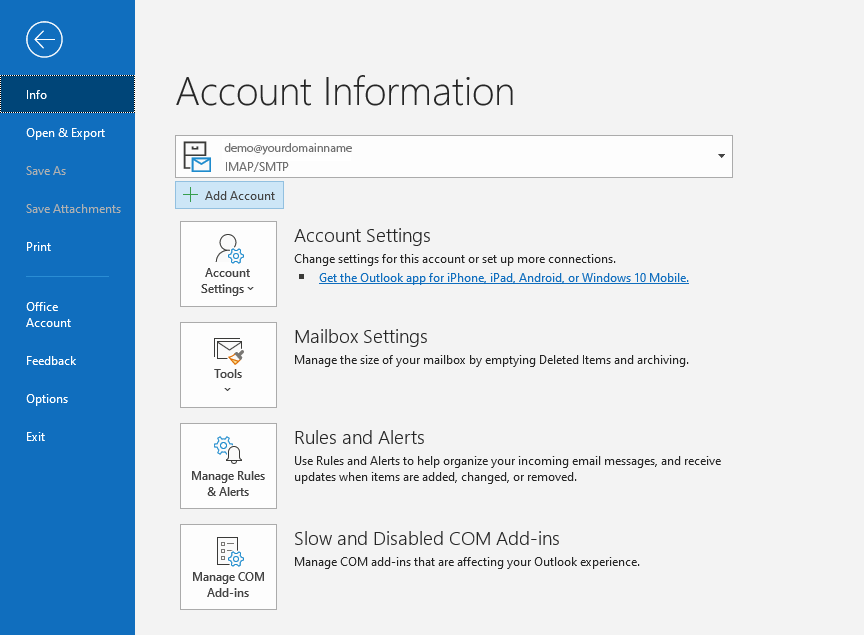
If this is your first time using Outlook and you don't have any mail accounts setup already, you may see a splash screen asking you to enter your email address. If not, select File from the Menu Bar.
Then click Add Account
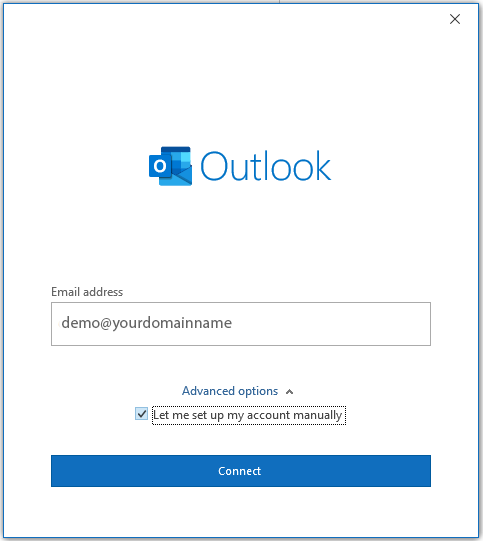
Enter the email address you'd like to add. Click on Advanced options and tick Let me set up my account manually.
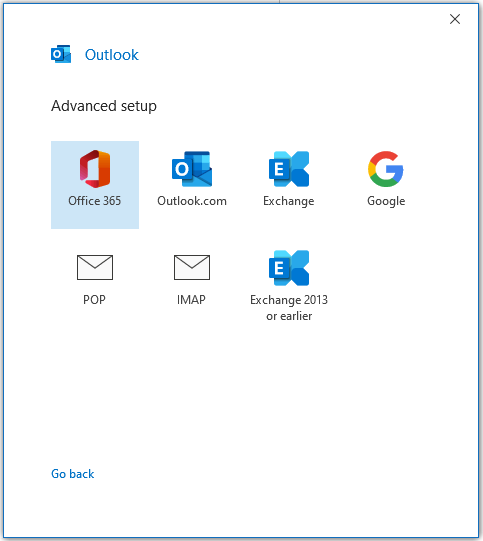
Outlook should then give you the option to select either POP or IMAP.
Outlook should then ask for your IMAP account settings, enter your incoming and outgoing server details and port numbers, select the encryption type to SSL/TLS and click Next.
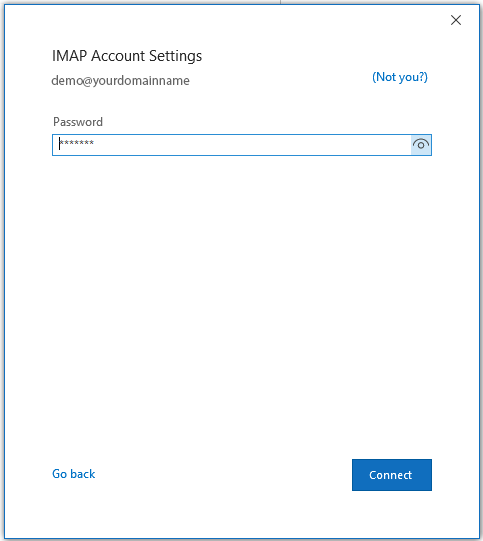
Enter your mailbox password and finally click Connect to complete the setup.
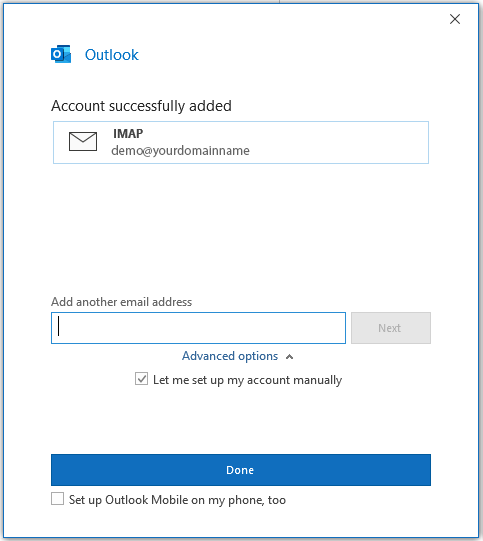
Congratulations, you should now have successfully added your email account to outlook. Just click Done to return to your mailbox.